
Email Intake Workflow
The Socotra Assistant can intercept emails and extract email data to assist with the underwriting process. This AI-assisted email intake workflow supports the following automated functionality:
- Automatically create tasks from inbound emails
- Pre-populate quote fields from submission emails
- Resolve data conflicts and validation errors by emailing brokers directly
Before proceeding with this guide, contact your Socotra representative to configure the email intake workflow for your business account.
Creating Tasks
When the Socotra Assistant intercepts an email related to a new quote, a new task will be created and auto-assigned to an underwriter based on the contents of the email and the email attachments. The task will be auto-assigned using the workgroup configuration for your tenant.
This task will appear in the Task Dashboard for your tenant. You can view the Task Dashboard by navigating to the Operations Workbench and selecting a tenant.
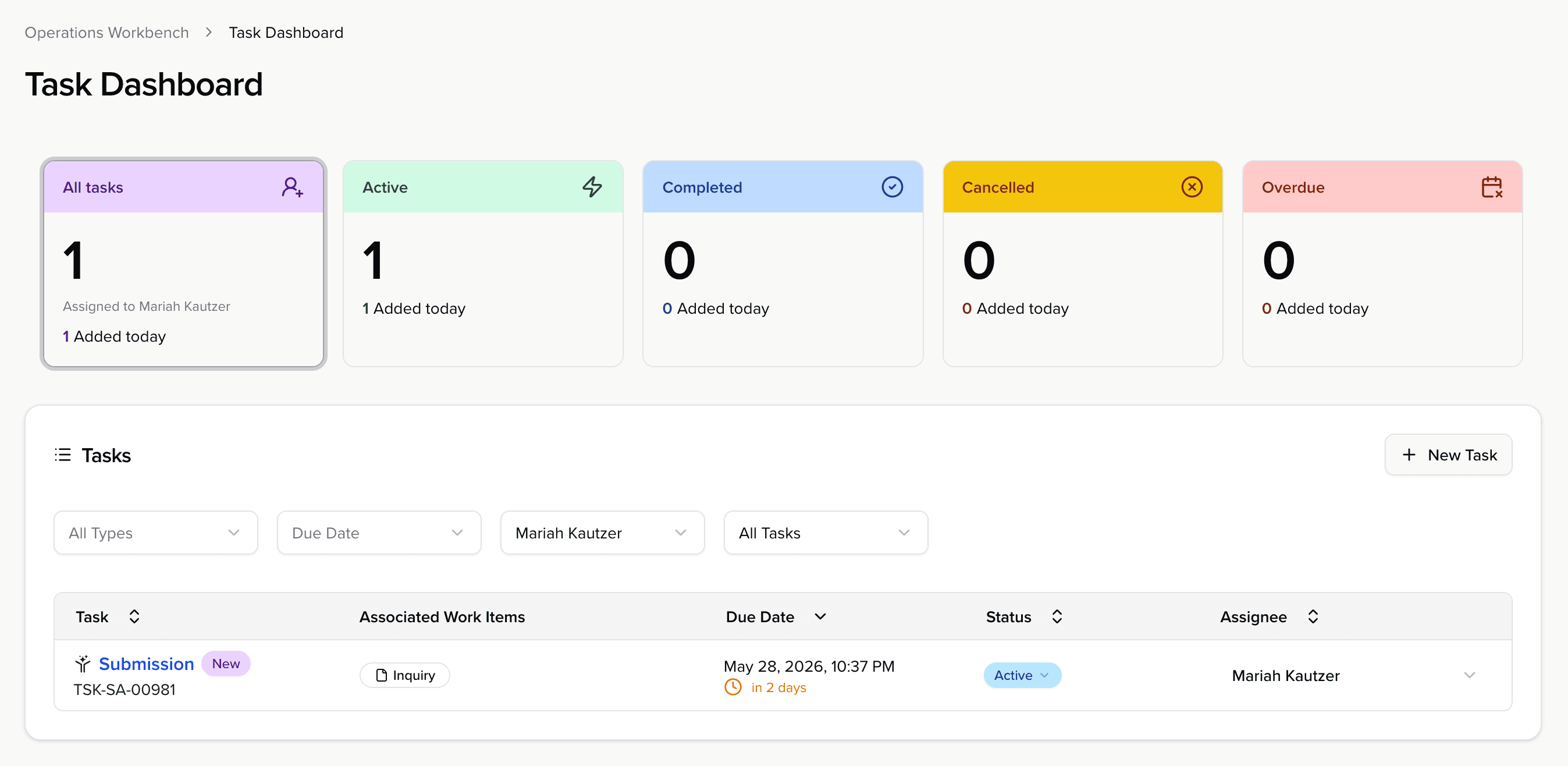
The email address of the sender will be displayed underneath the task name, a New tag will be displayed next to the task name, and the Associated Work Items column will contain an Inquiry.
The New tag is only used for tasks created by the Socotra Assistant.
Click on the task name to open the task sidebar.
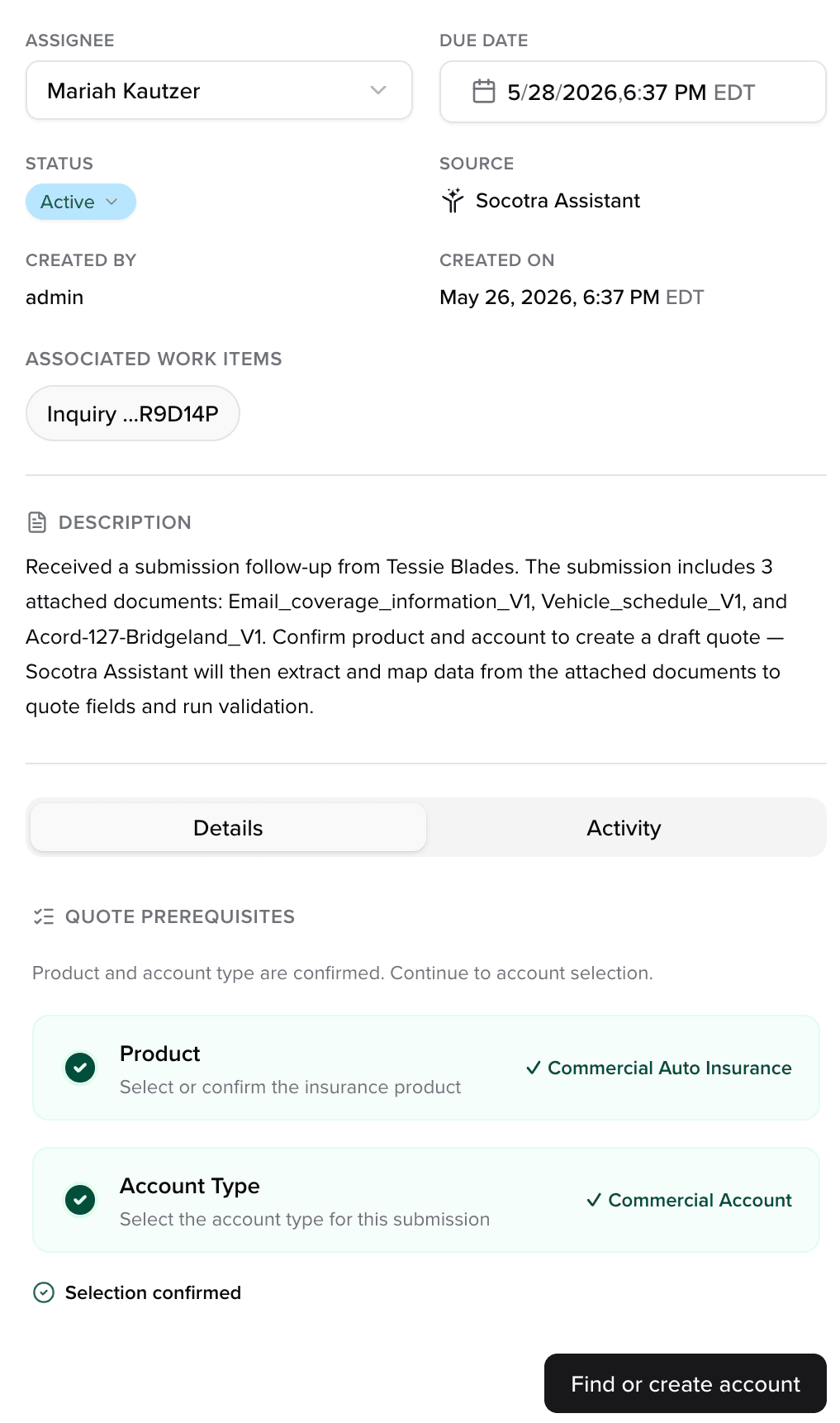
The task sidebar contains an overview of the task, in addition to the Details and Activity tabs.
The Activity tab contains the email and email attachments. You can view attachment contents by clicking on an attachment.
The Details tab contains a Product field and an Account Type field that will be associated with a new quote. These fields will be pre-populated by the Socotra Assistant based on the contents of the email and email attachment, and can be modified if necessary.
Once you're satisfied with the Product and Account Type, click the Find or create account button.
The Account selection tab will display a list of accounts that most closely match the contents of the email and email attachments. You can search for additional accounts or create a new account if necessary. Accounts must be in the validated state in order to proceed. For accounts in the draft state, fill out the account fields and click the Save button to validate the account.
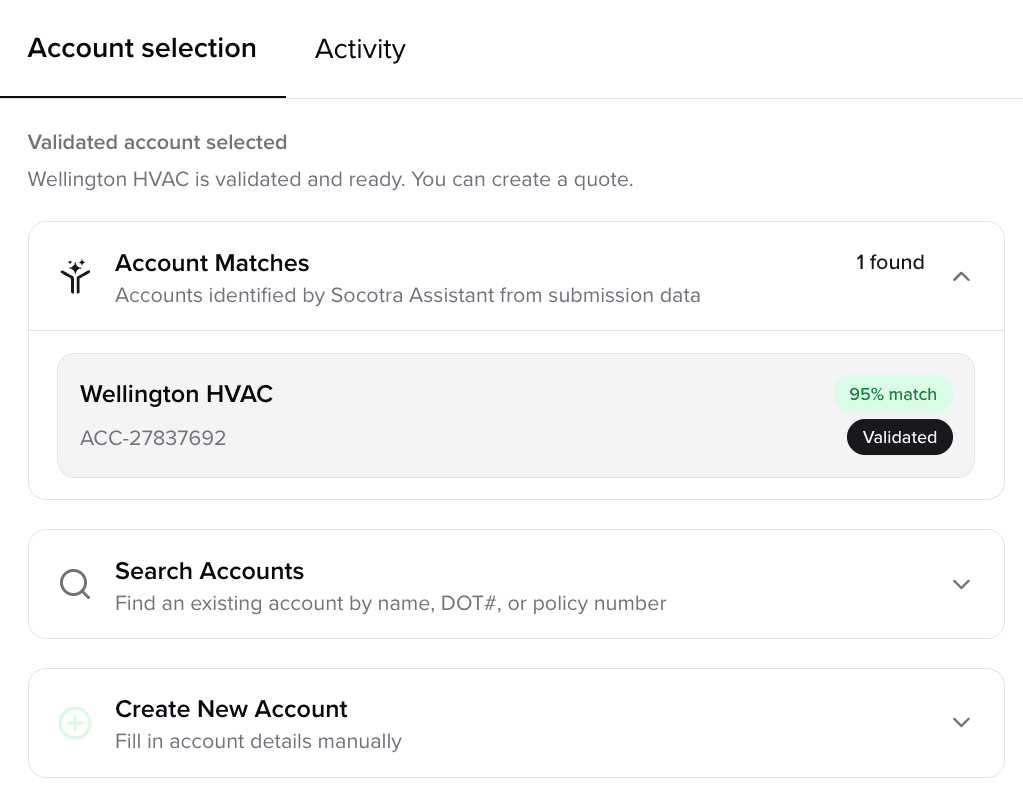
Select a validated account and click the Create Quote button.
Adding Email Data to a Quote
Once the quote is created, the Socotra Assistant will automatically execute the Import action and begin importing the email and email attachments. Once the process is complete, quote fields will be automatically populated based on the contents of the email and email attachments, and the results of the process will be added to the Conflicts, Low Confidence, and Extracted dropdowns. You can manually upload additional documents and modify quote fields if necessary.
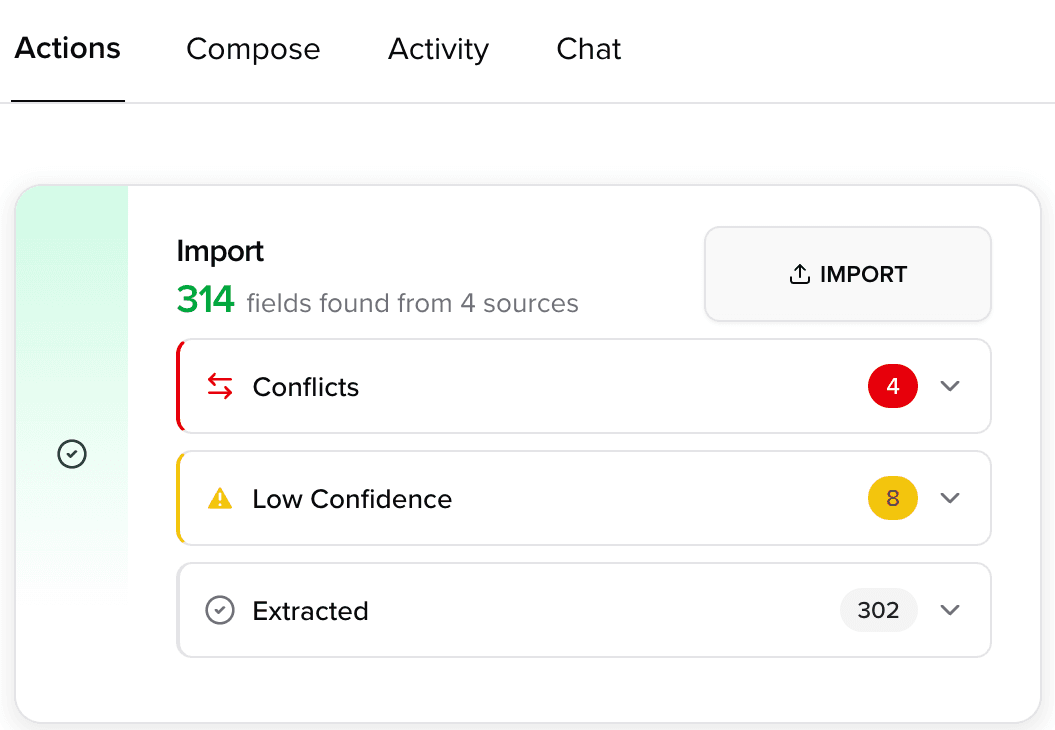
Quote fields cannot be modified while the Socotra Assistant is executing the Import action.
Resolving Data Conflicts
Click the Conflicts dropdown and select one of the options displayed under the relevant quote field. Click the Resolve button to mark the conflict as resolved. The Socotra Assistant will continue to display additional conflicts until all conflicts are marked as resolved. The file names containing the sources of each conflict are displayed in the Conflicts tab. The body.txt file refers to the contents of the email. You can view attachment contents by clicking on an attachment.
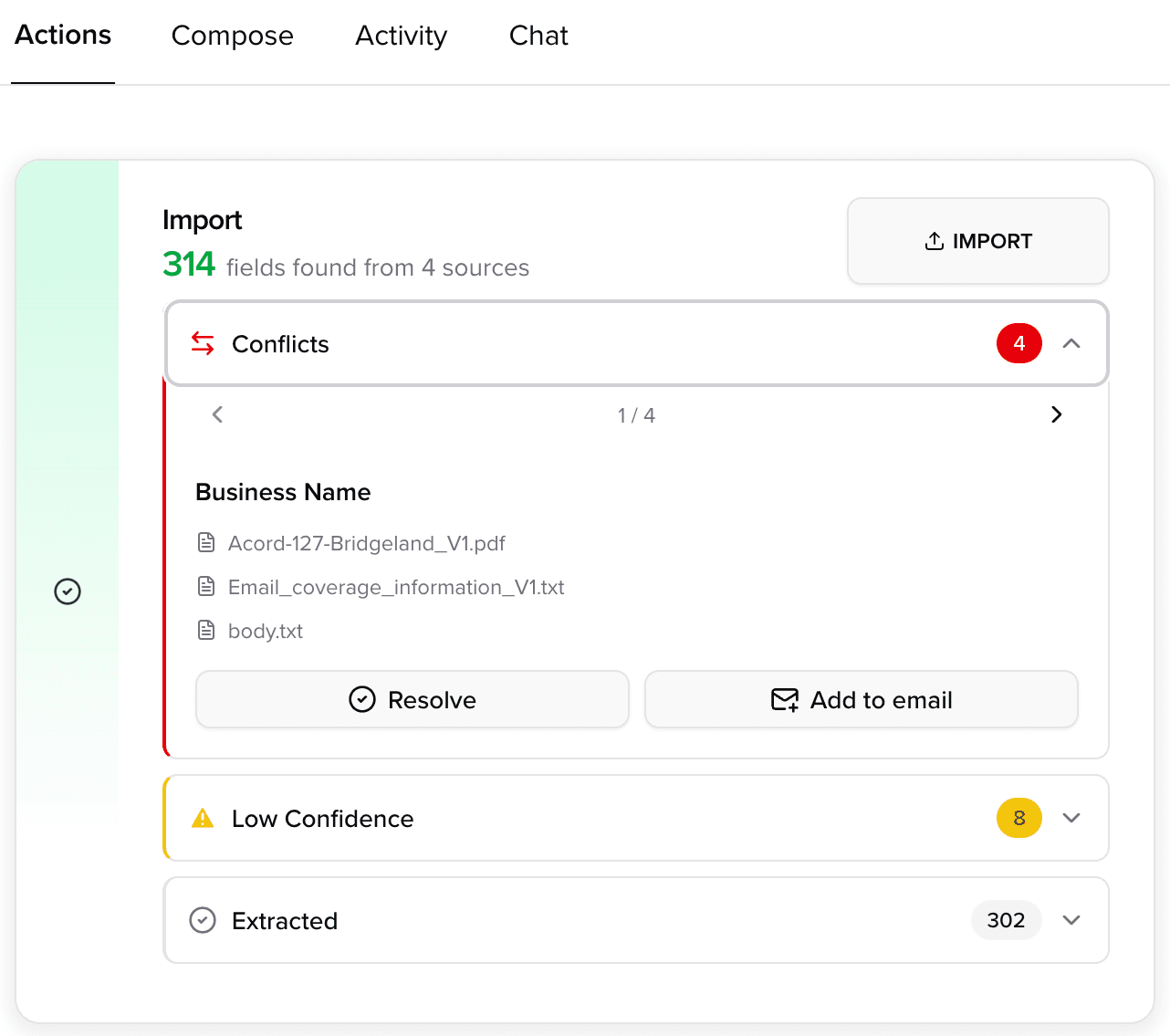
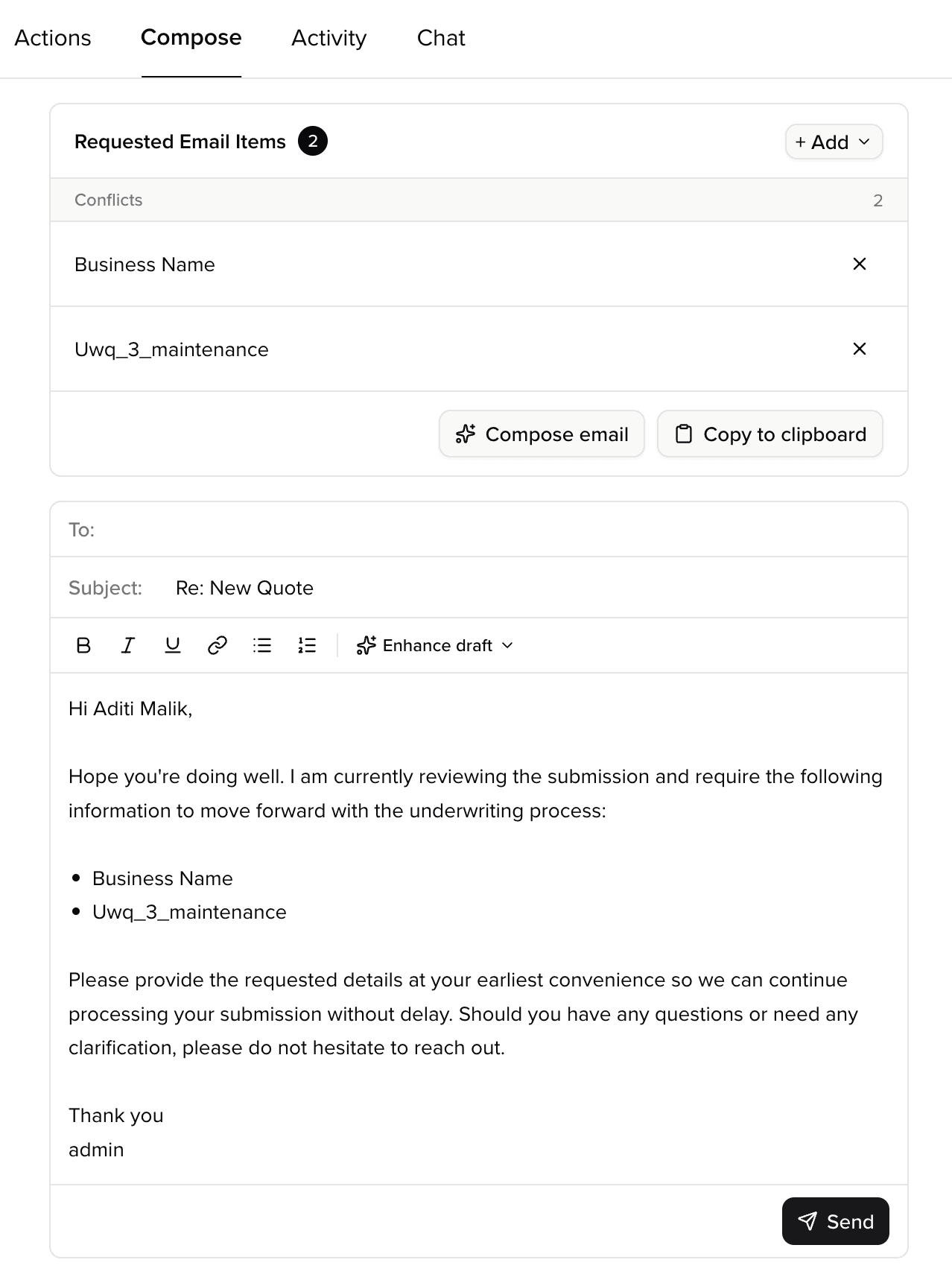
Click the Add to email button and navigate to the Compose tab to draft an email asking for the information in question. Click the Add button, and select the relevant items to include in the email, then click the Compose email button to generate a draft. Click the Enhance draft dropdown for additional AI-assisted drafting functionality. The contents of the email can be modified manually if necessary. Click the Send button to send the email.
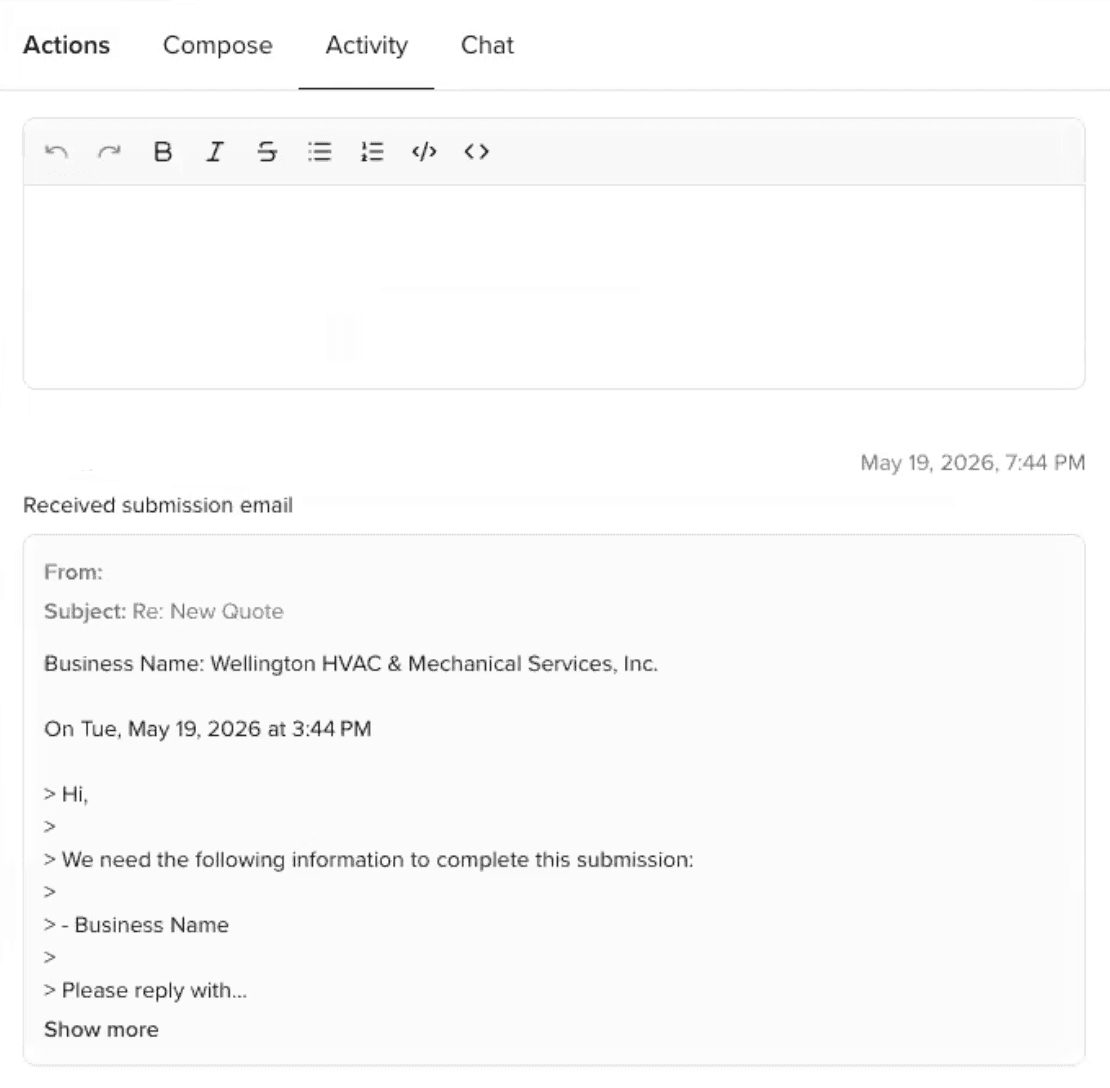
Once the system intercepts a reply to this email, the relevant conflicts will be automatically marked as resolved, and the corresponding fields will be updated based on the contents of the email. You may need to reload the page to see the changes take effect.
You can view the email chain history by navigating to the Activity tab.
In the Actions tab, click the Low Confidence dropdown and select dropdown items to view potentially inaccurate values along with the percentage of confidence in the accuracy of each value.
You can view all extracted data by clicking on the Extracted dropdown.
Resolving Validation Issues
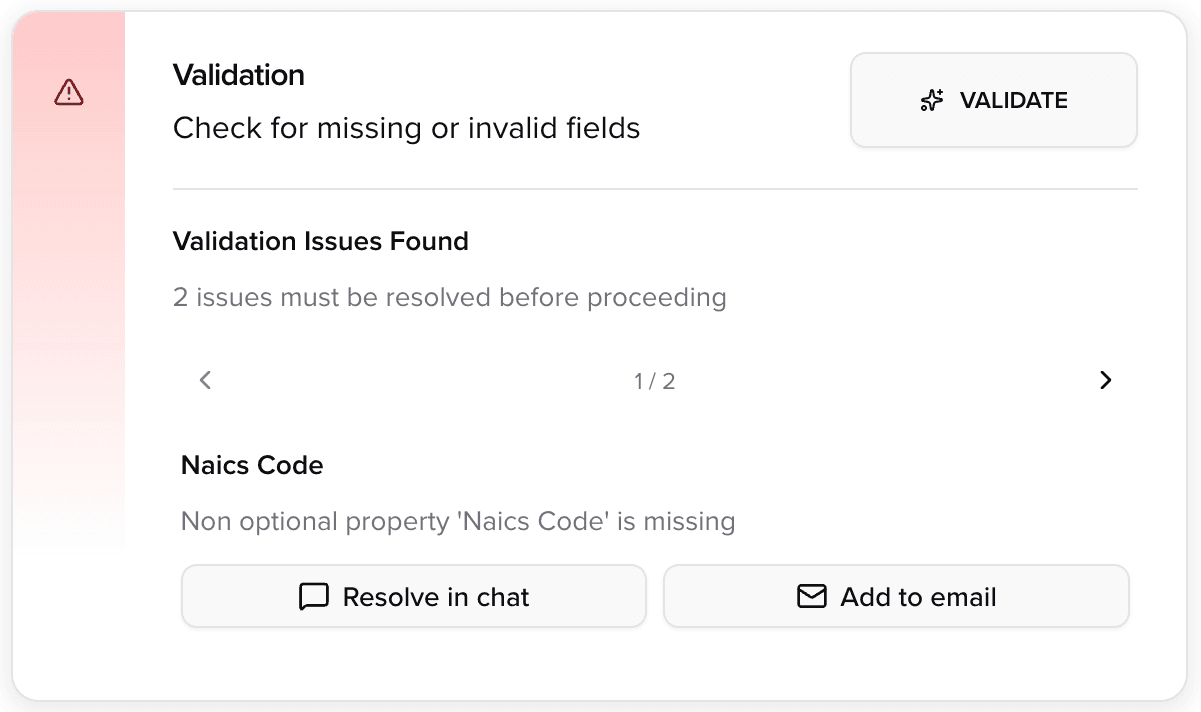
Execute the Validate action by clicking the Validate button. Click the Resolve in chat functionality to fix a validation issue by chatting with the Socotra Assistant chatbot, or click the Add to email button and navigate to the Compose tab to draft an email asking for the information in question. Click the Add button, and select the relevant items to include in the email, then click the Compose email button to generate a draft. Click the Enhance draft dropdown for additional AI-assisted drafting functionality. The contents of the email can be modified manually if necessary. Click the Send button to send the email.