
Labels
Labels can be used to categorize tasks and manage task workflows according to your specific business needs. Each tenant can configure up to 100 labels.
Use Cases
The following examples illustrate how labels can be used to organize tasks:
- Tasks that can't be completed yet might have a
blockedoronHoldlabel. - Tasks that require review and approval by a manager might have a
pendingRevieworescalatedlabel. - Tasks that require action from a customer might have an
awaitingCustomerorpendingSignaturelabel.
Configuration
Before labels can be associated with a task, labels must be configured through LabelRef configuration objects within the WorkManagementRef tenant configuration.
Here's an example of a WorkManagementRef configuration that includes blocked, escalated, and awaitingCustomer labels:
{
	"labels": {
		"blocked": {},
		"escalated": {},
		"awaitingCustomer": {}
	}
}
LabelRef configuration objects are currently empty, but properties may be added in future releases.
Label configurations cannot be removed or renamed after deployment.
Adding Labels to Tasks
Task Dashboard
Once your configuration changes have been deployed, you can start adding labels to tasks within the Task Dashboard.
Access the Task Dashboard by navigating to the Operations Workbench and selecting a tenant.
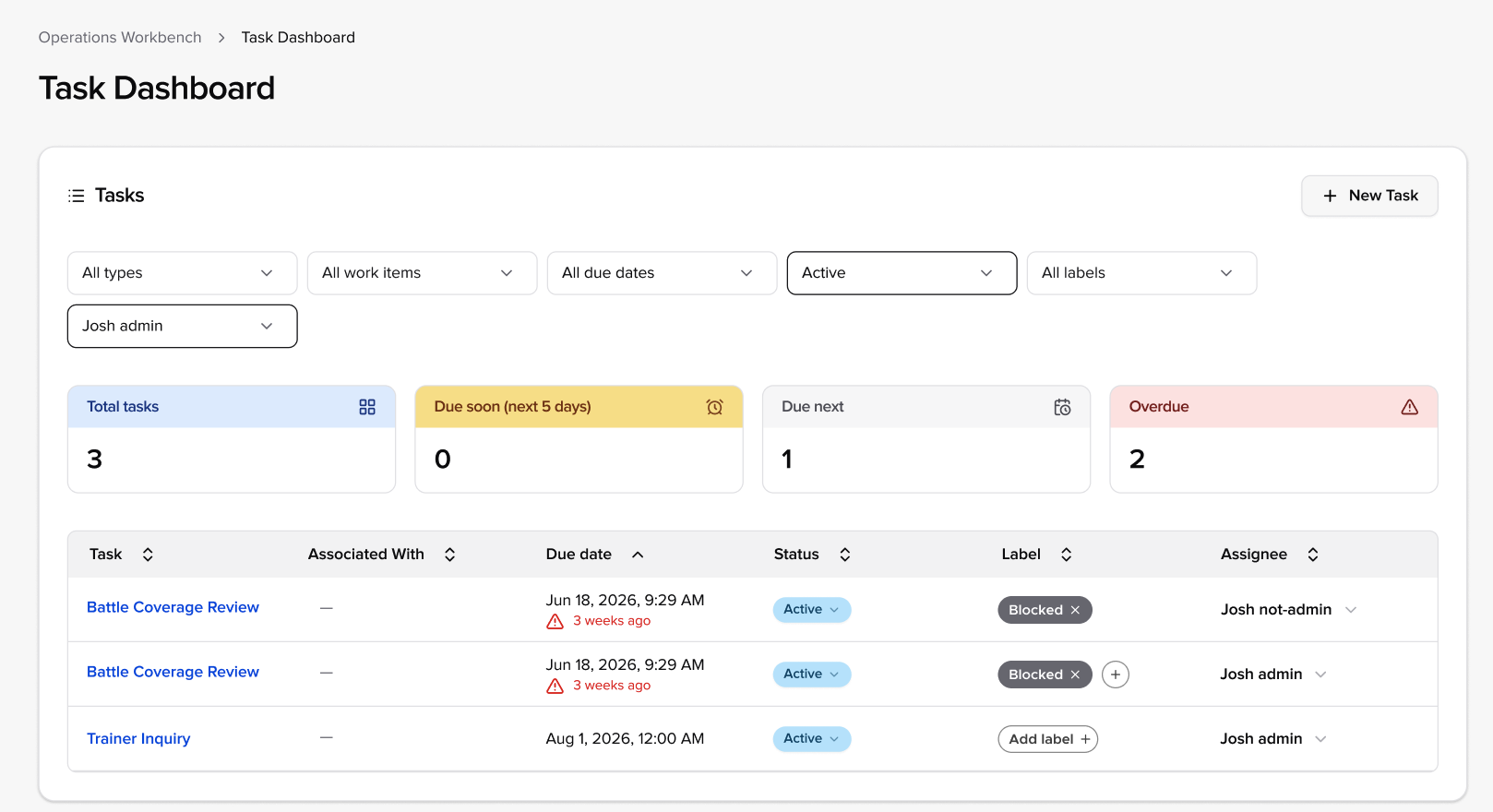
You can add labels to existing tasks in the Task Dashboard by clicking the + or Add label + button in the label column. Click the x button next to a label to remove the label.
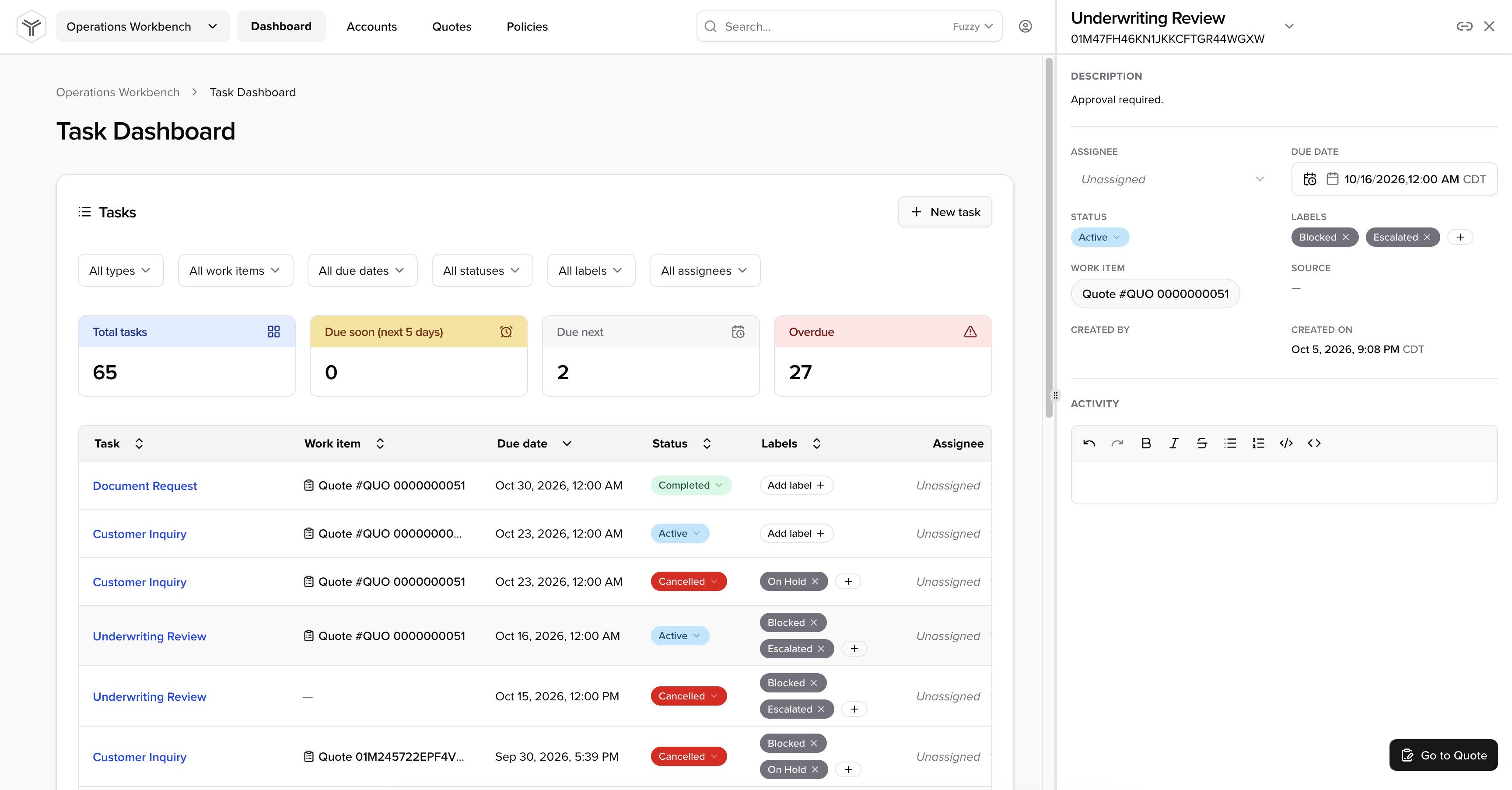
Alternatively, you can add labels to a task from the task sidebar. You can open the task sidebar from the Task Dashboard by clicking on the link for a given task in the Task column.
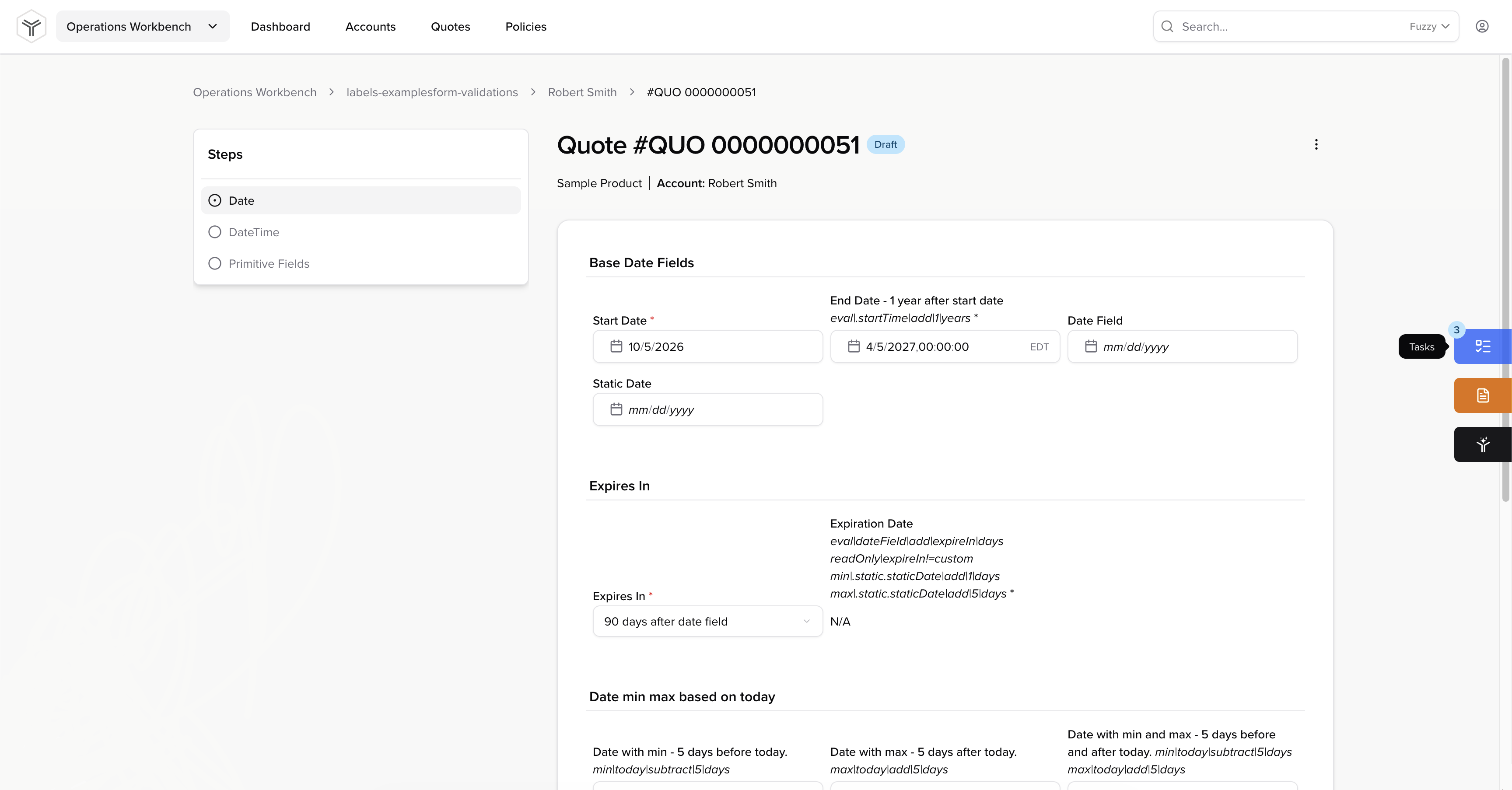
If you're currently viewing an entity such as a quote or policy in the Operations Workbench, you can open the task sidebar by clicking the blue Task button on the right side of the screen. You can add and remove labels directly from this task list view. Click the arrow to the right of your task in the task list view to modify additional task details.
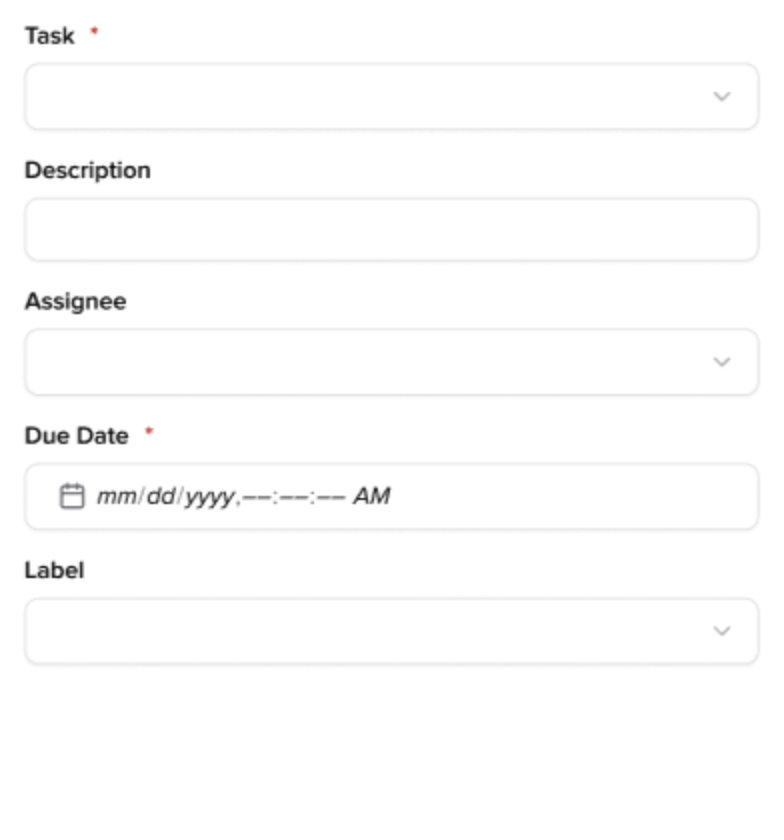
You can also add labels from the task sidebar when creating a new task. See the Managing Tasks in the Operations Workbench feature guide for more information on creating new tasks.
API Endpoints
You can also add labels to tasks when creating and updating tasks through the Add Task and Update Task API endpoints.
Here's an example request for the Add Task API endpoint:
{
	"type": "underwriting",
	"deadlineTime": "2027-01-15T09:30:00Z",
	"references": [
		{
			"referenceType": "quote",
			"referenceLocator": "01ARZ3NDEKTSV4RRFFQ69G5FAV"
		}
	],
	"labels": ["blocked", "escalated"]
}
Here's an example request for the Update Task API endpoint:
{
	"addLabels": ["awaitingCustomer"],
	"removeLabels": ["escalated"]
}
The same label cannot be present in both the addLabels and removeLabels fields. Requests will also fail if a specified label does not exist.
Search
Search for tasks with a specific label by using the label filter in the Task Dashboard.
