
Managing Tasks in the Operations Workbench
Task Dashboard
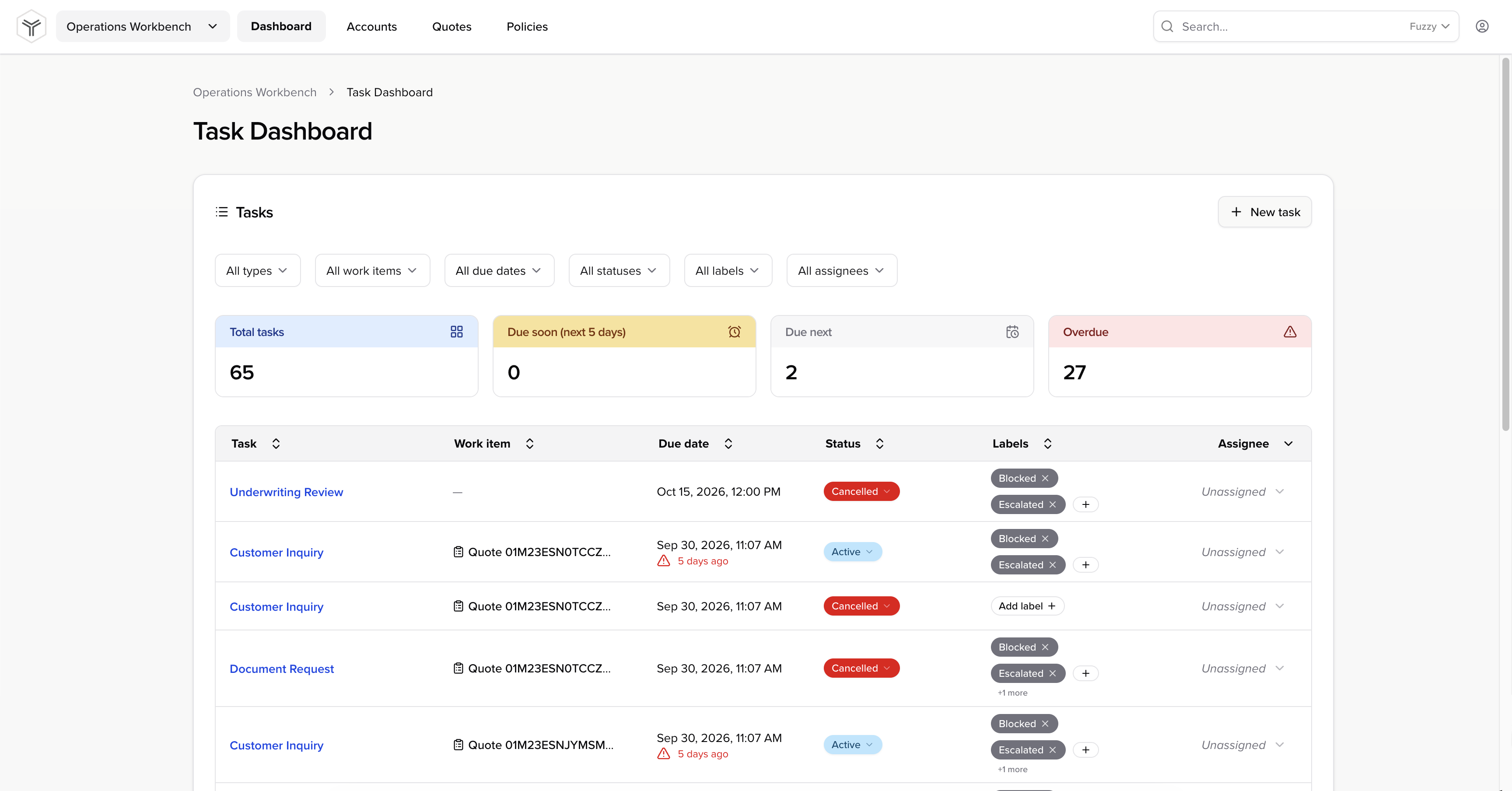
The Task Dashboard gives teams a space to manage their work within the Operations Workbench.
If work management functionality has been enabled for your tenant in the System Manager, the Task Dashboard will appear on your tenant's landing page in the Operations Workbench.
Create a Task
You can create tasks by:
- Sending requests to the Add Task API endpoint. This can be accomplished through Automation Plugin implementations, typically in response to events. You can also send API requests manually or from external systems.
- Clicking the New Task button in the upper right corner.
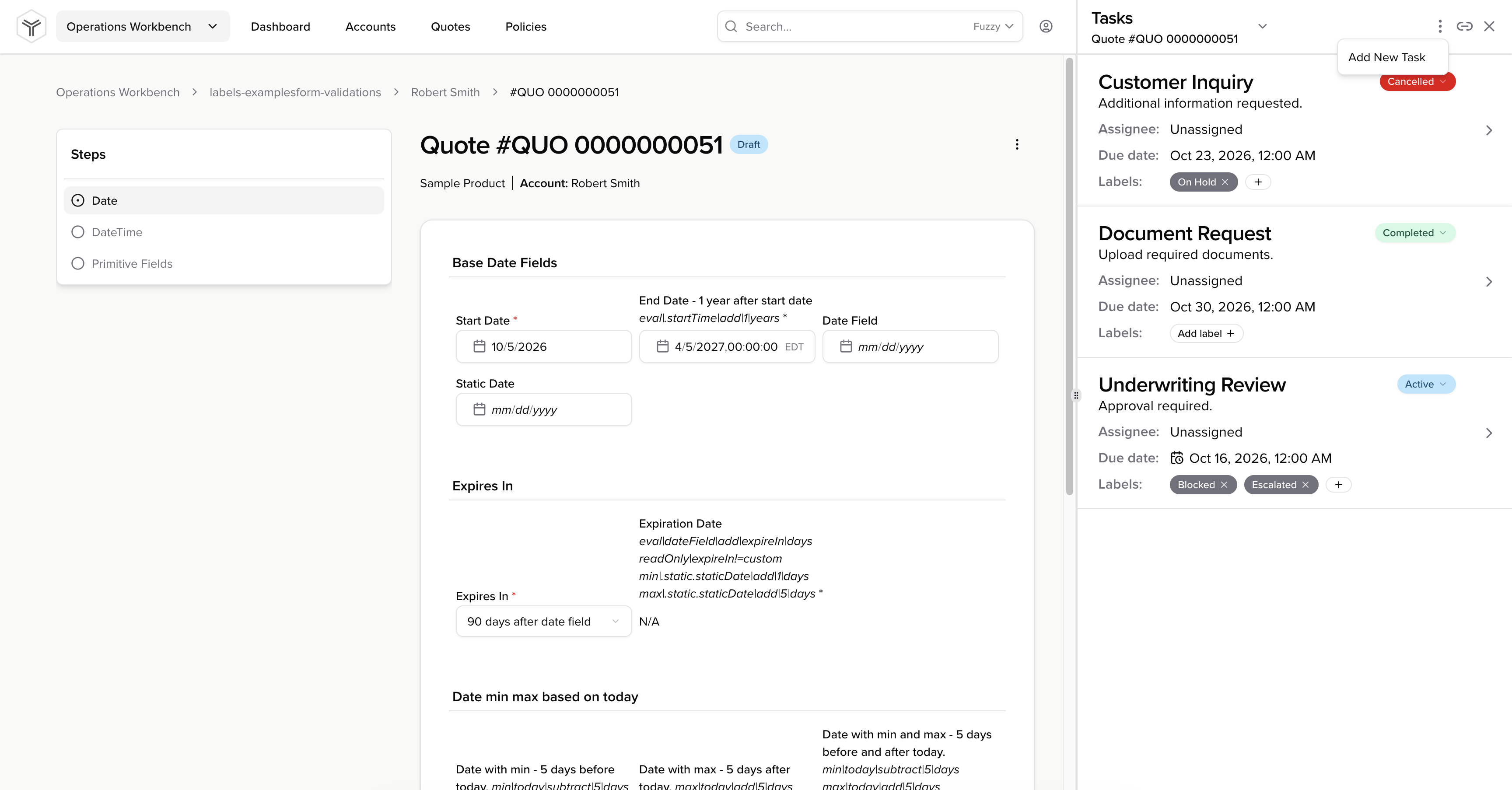
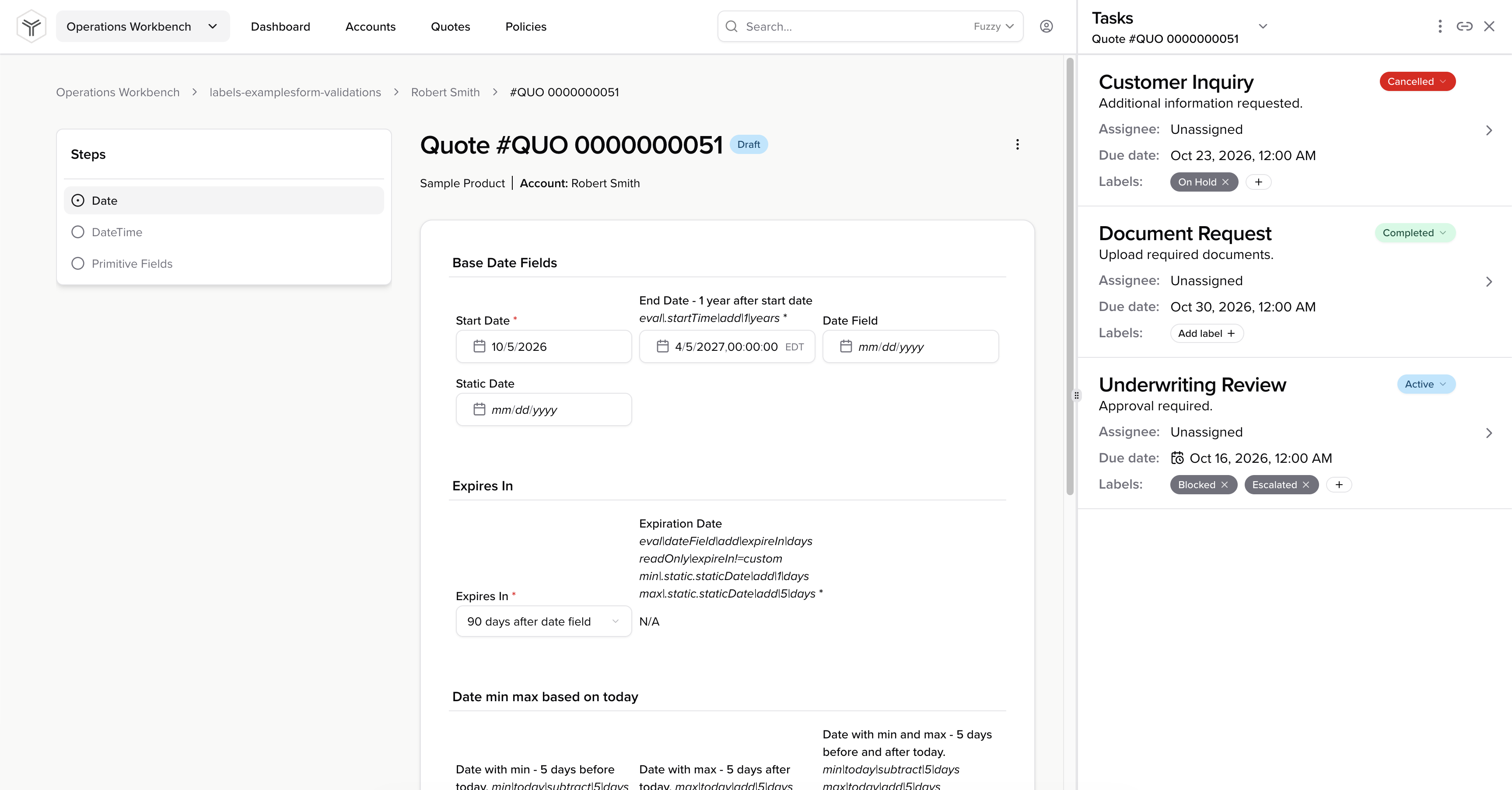
- While viewing a quote, policy, or account, clicking the blue Task button on the right side of the screen, clicking the settings icon in the upper right corner of the sidebar, and clicking the Add New Task button. Creating a task this way will associate the task with the entity you're currently working on.
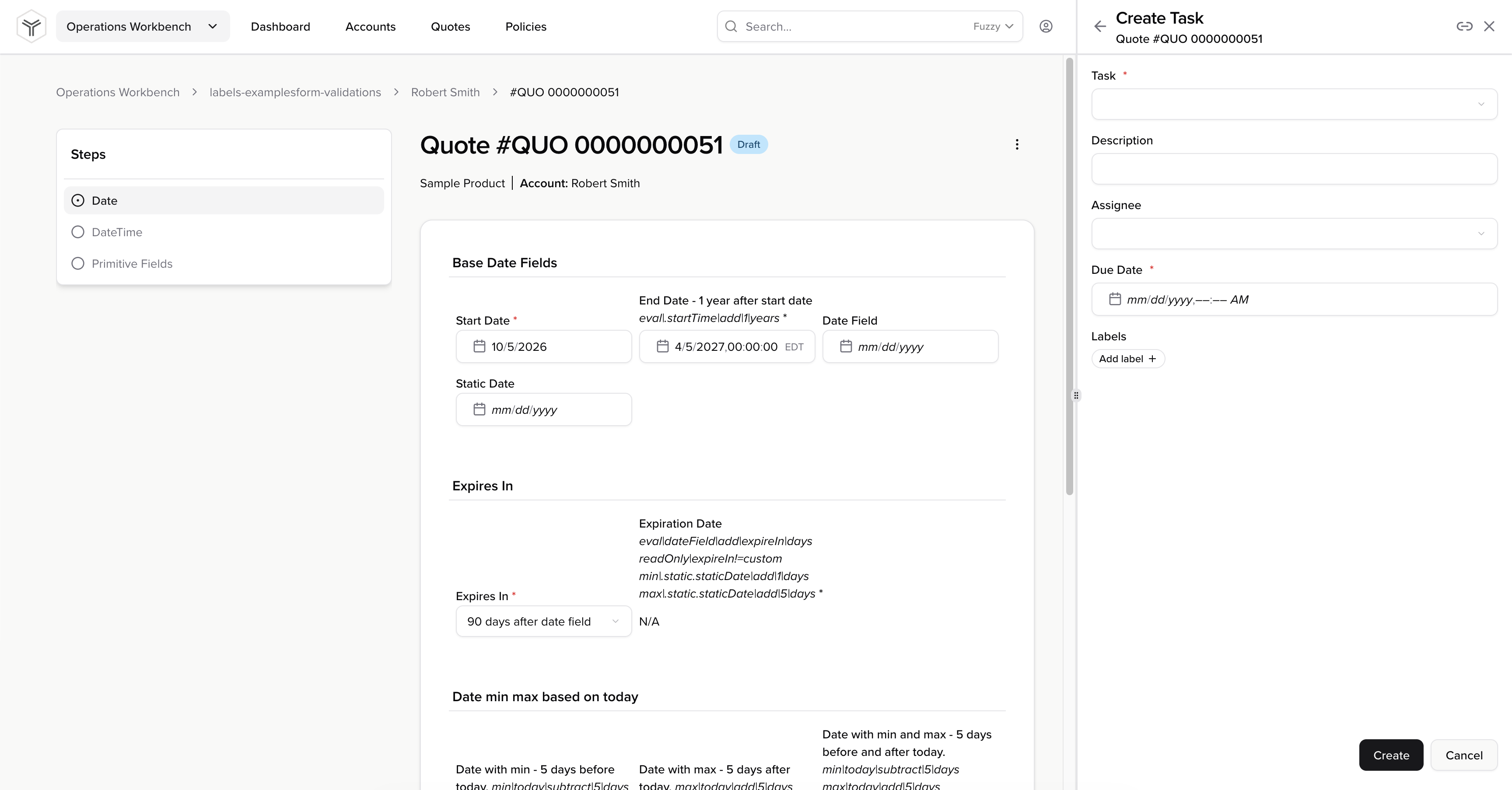
Specify the task type, due date, an optional description, and optional labels. You can assign the task or leave it unassigned for now. Click the Create button to create the task.
Task Summary
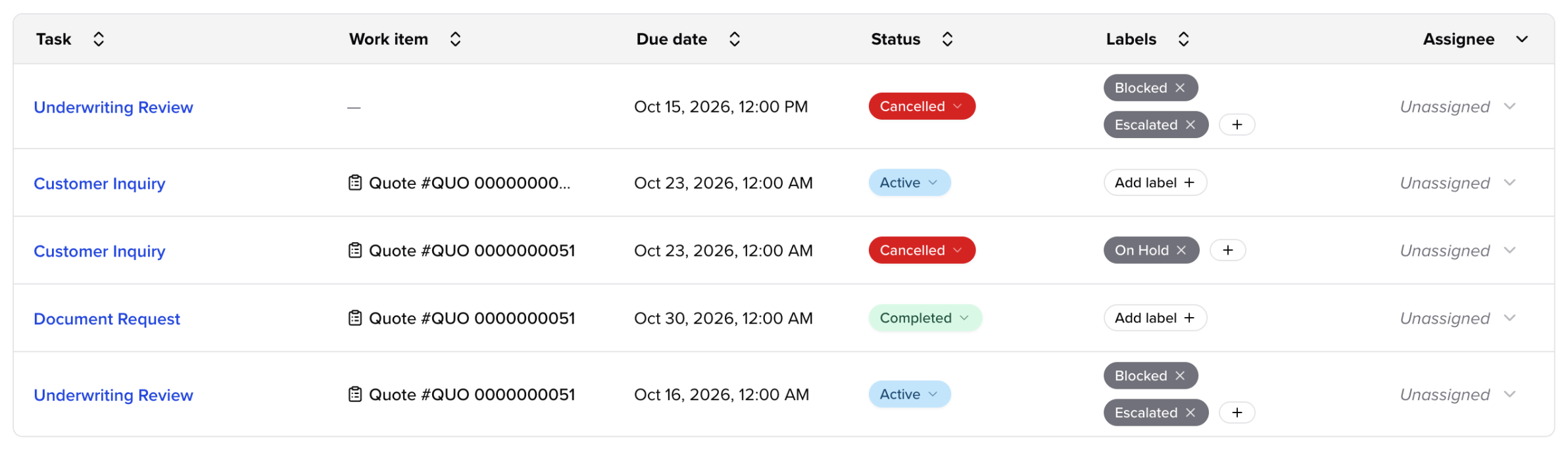
The Task Dashboard displays a summary of each task with the following information:
- Task type
- Work item
- Due date
- Status
- Labels
- Assignee
Status
Tasks can have one of three statuses:
ActiveCompletedCancelled
Tasks will be Active upon creation. You can update the status of a task by clicking the status and selecting a new value from the dropdown.
When an Active task becomes past-due, the status will remain Active, and a red warning will appear underneath the due date showing how long the task has been overdue, calculated based on the current time and the due date time.
Labels
Labels can be used to categorize tasks and manage task workflows according to your specific business needs. See the Labels feature guide for more information on labels.
The following examples illustrate how labels can be used to organize tasks:
- Tasks that can't be completed yet might have a
blockedoronHoldlabel. - Tasks that require review and approval by a manager might have a
pendingRevieworescalatedlabel. - Tasks that require action from a customer might have an
awaitingCustomerorpendingSignaturelabel.
Add one or more labels to a task from the task summary view by clicking the + or Add label button in the label column. Click the x button next to a label to remove the label.
You can also add and remove labels from the task sidebar. Open the task sidebar from the Task Dashboard by clicking on the link for a given task in the Task column.
Filters
Filter tasks by clicking the filter dropdowns and selecting a value. You can filter tasks by one or more columns.

Metrics
The Task Dashboard contains a set of task metrics to help track task backlogs and work management performance.

Task metrics continually track the number of tasks that match the following criteria:
- Total tasks
- Tasks due within the next 5 days
- Tasks due beyond the next 5 days
- Overdue tasks
Sorting
Sort tasks by column in ascending or descending order by clicking the arrows next to each column name.
View Task Details
View additional task details by clicking on the link for each task in the Task column. The task sidebar will appear on the right side of the screen.
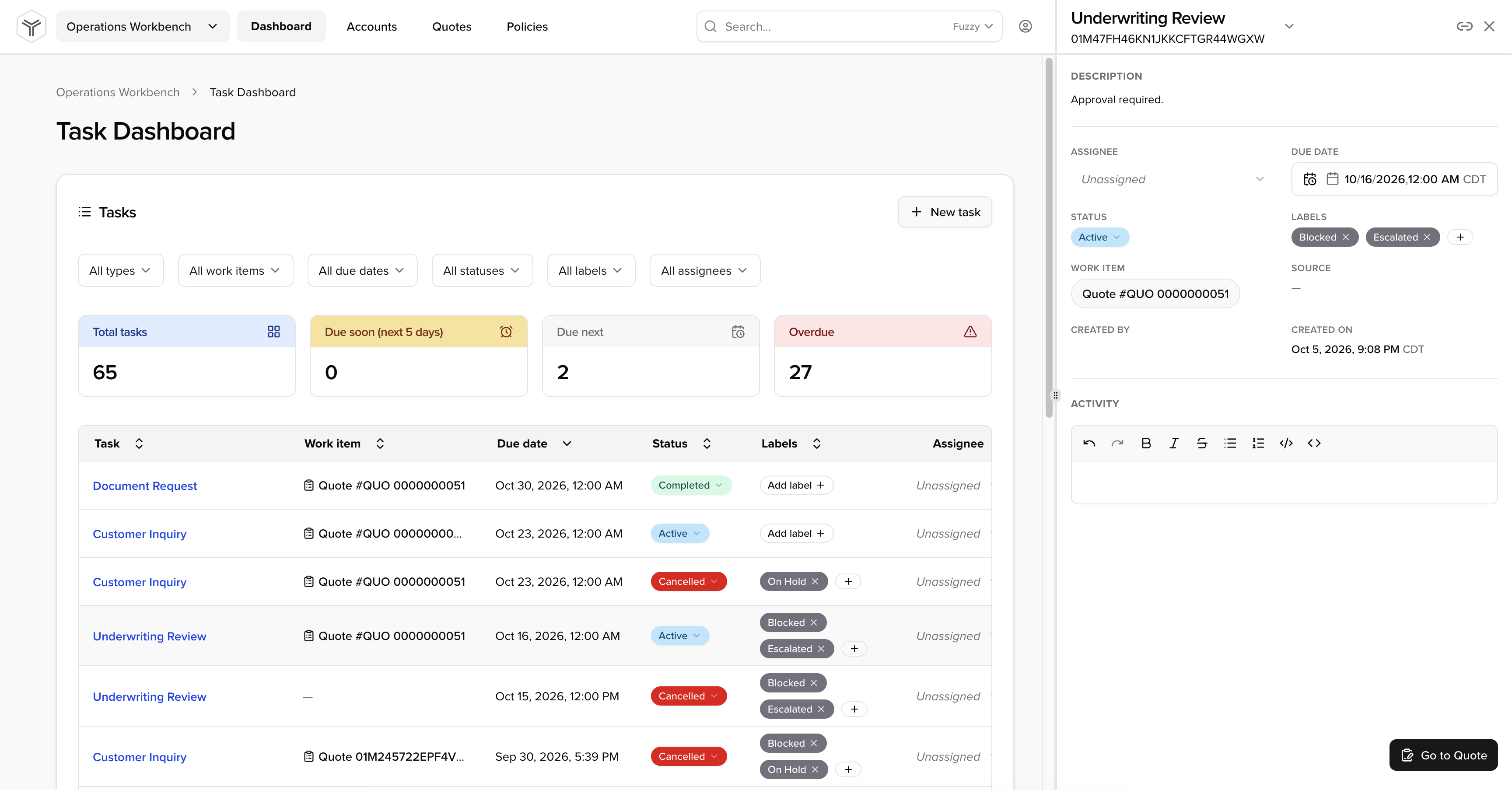
From the task sidebar, you can reassign the task and update the status, due date, and labels. Scroll down to the Activity section to add notes to your task.
Click the Go to… button in the lower right corner to begin working on the entity associated with your task. Alternatively, you can click the name of the entity in the task sidebar or task summary view to begin your work.
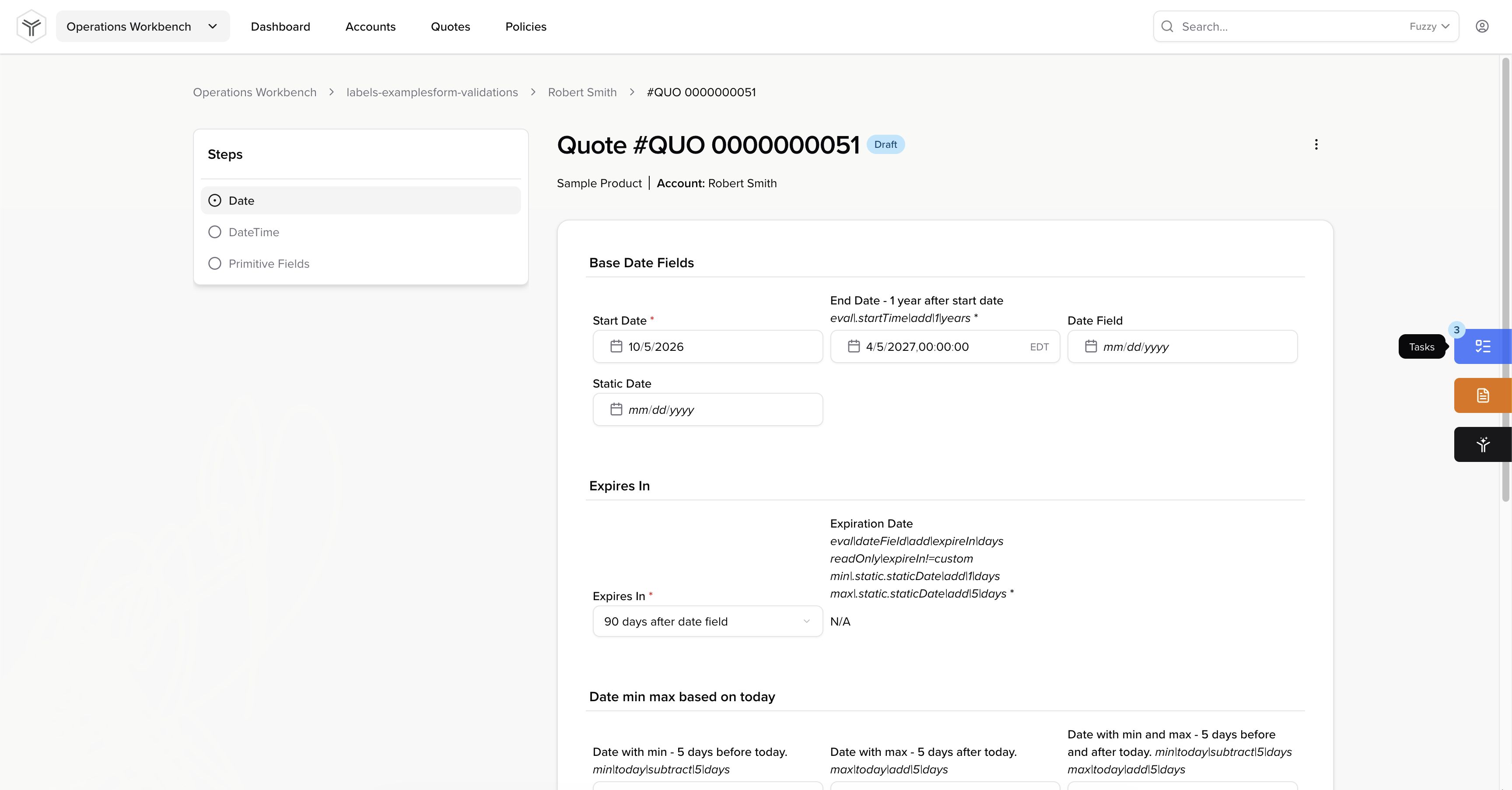
Once you've finished your work, click the blue Task button on the right side of the screen to open the task sidebar, click the arrow to the right of your task in the task list view, and update the status of your task by clicking the Status dropdown and selecting a value.
Add notes in the Activity text box as needed. Click the Save button to save your notes.
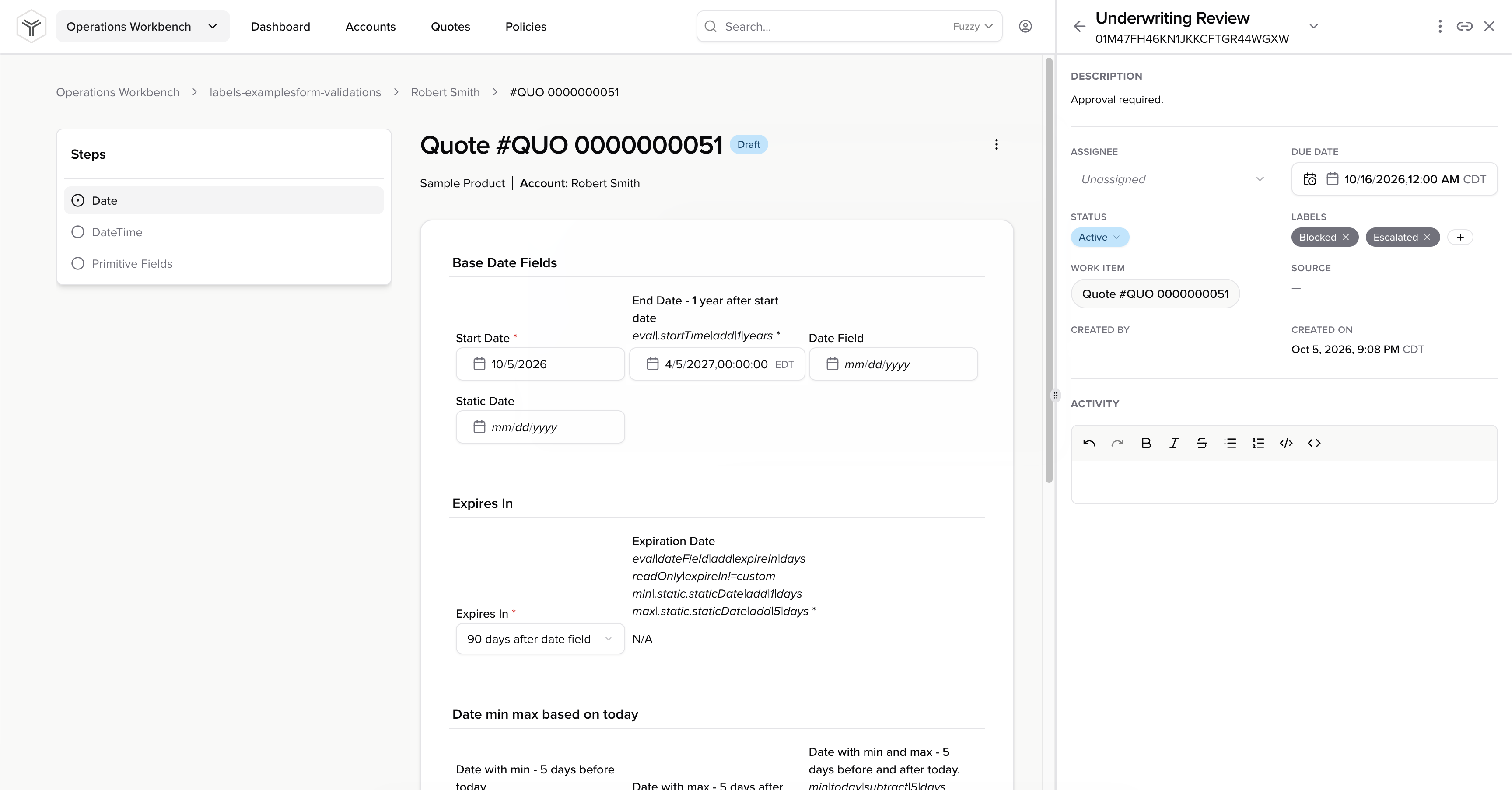
Click the back arrow in the upper left corner of the task sidebar to view all tasks associated with your current entity. You can update the task status and labels for each task directly from the task list view.
Click the Dashboard button in the upper left corner of the screen to return to the Task Dashboard and continue working on other tasks.